House ads
House Ads are ads that are images that are displayed in the standard ad container when there are no programmatic ads available (no fill). These are images that the app developer uploads to the developers console to be used to advertise new app features, app promotions, and app tutorials. Developers have the option to add a link to the image that will let the user click through to a specific destination. App developers can also add an event to the image so that when the user clicks through, the event will trigger a specific action (e.g., open a specific screen app or feature).
House ads control
House ads are now deployable both on a global and individual region basis. This allows the ability to target different regions with relevant ads (e.g., different pricing, special coupons, etc.).
- House ads are not to be used with external ad campaigns. External ad campaigns are managed and monitored by Overwolf.
- House ads won't be displayed in your app if there is an active ad blocker running.
The House ads control menu item provides a table view of the house ads that can be configured.
The table contains the following fields:
- Ad size—the size of the House ad.
- Global ad—used in all regions unless a regional override exists. This column contains:
- Not active—an ad image exists, but the Activate this ad checkbox has not been enabled.
- Not defined—there is no ad image for the selected ad size.
- Active—an ad image exists, and the Activate this ad checkbox has been enabled.
- Regional ads—a list of regions where the ad will be displayed.
- Statistics—link directly to the ads statistics page.
- Edit container—link directly to the edit ad page.
To add House ads:
- Open your Developers console.
- In the left side menu, press House Ads, then press Ads control.
- In the table choose a size for your House ad, then press Edit.
- Regional House ads when activated, will appear only in the set regions.
- Regional House ads, when activated, will override activated global House ads only in the set regions.
Uploading a global house ad
To upload House ads images:
- Make sure the Global ad tab is selected.
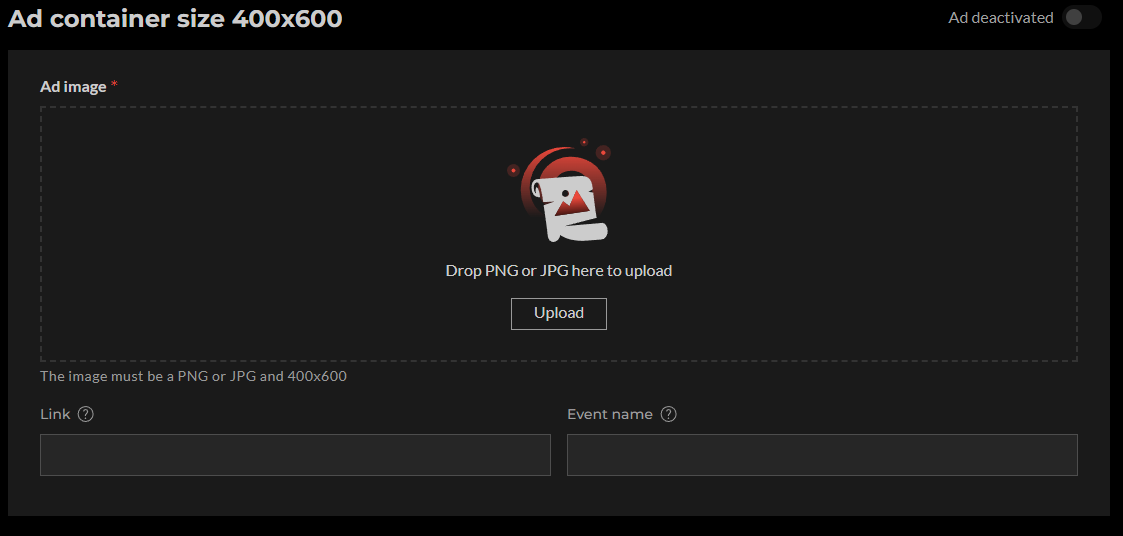
- Upload your image to the corresponding image size pane. Use only PNG or JPG formatted images. See the example below.
- Enter a link that will open when the image is pressed. (optional)
- Enter an event name for an event listener in your app that will trigger actions. (optional)
- Use the Ad activated check box to activate/deactivate the ad.
- When complete, press Save.
House ads size pane example.
Uploading a regional house ad
- Make sure the Regional ad tab is selected.
- In the drop down menu, select one or more the countries that will receive your ad. Each selected country has a check mark.
- Upload your ad image by pressing Upload or use drag and drop.
- Enter a link that will open when the image is pressed. (optional)
- Enter an event name for an event listener in your app that will trigger actions. (optional)
- Use the Ad activated checkbox to activate/deactivate the ad.
- When complete, press Save.
- To add additional ads, press the + New regional ad button, or press the + Create button in the Create new regional ad pane at the bottom.
House ads events
You can configure your house ad with an event listener in order to trigger actions based on events. For example:
owAdInstance.addEventListener('house_ad_action', (e) => {
  console.log('house_ad_action', e);
});
When this action is triggered, you will receive the following response:
result:
{
    "action": "NAME"
}